

Dr. Michael Heidinger
CEO, Digital Power Systems
CEO, Digital Power Systems
Ready to take on an exciting DIY project? This guide walks you through setting up a Raspberry Pi power supply inside a control cabinet. Whether you are a tech enthusiast or just starting out, our step-by-step instructions will help you create something functional and impressive.
Materials Required
- Raspberry Pi - any model; this tutorial uses the Raspberry Pi 5
- USB-AC-PD Power Supply by DPS
- USB-C Cable
- DIN Rail Control Cabinet / Project Box
- Power Cord
Step 1: Install the Cable in the Project Box
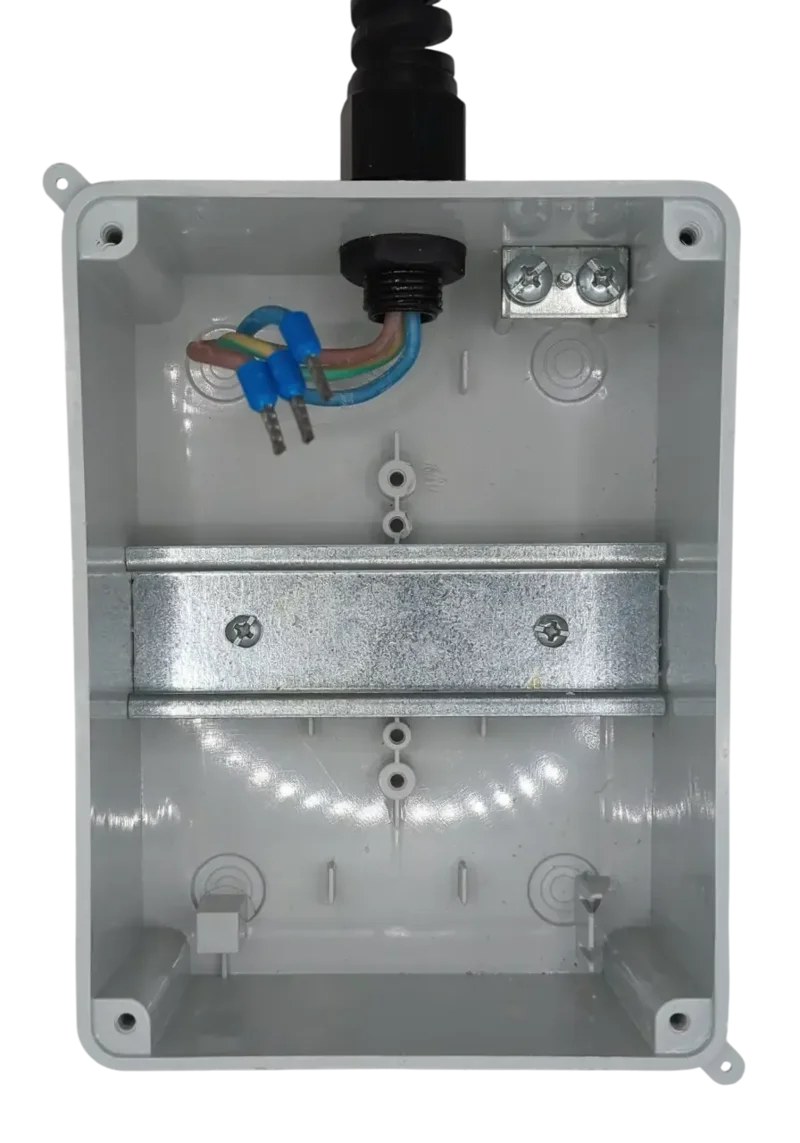
- Install the power cable into the control cabinet box.
- Use a cable gland for strain relief.
- Use crimp terminals with stranded wire for reliable connections.
Step 2: Connect the Power Supply Cables
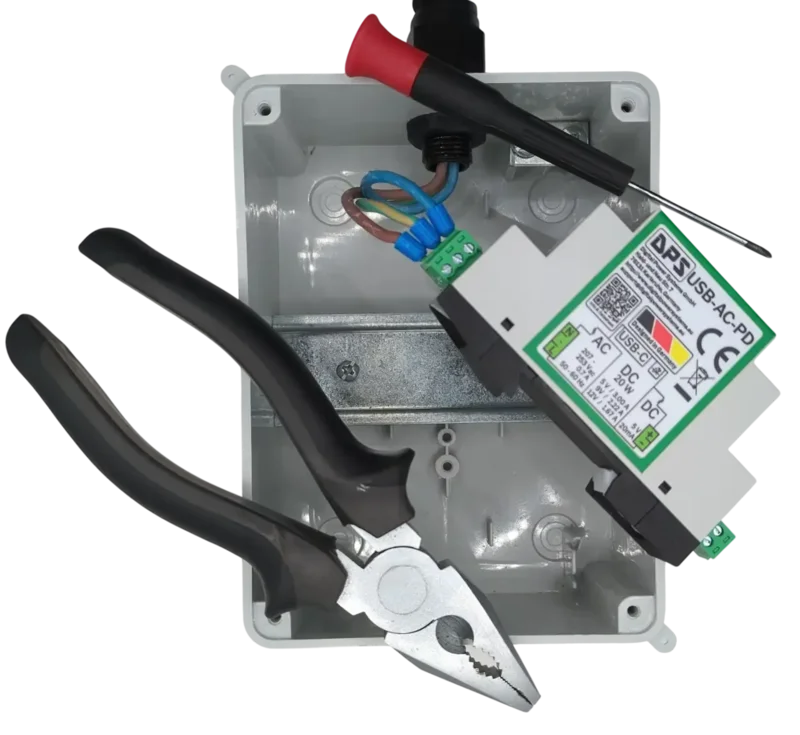
- Connect the wires to the three-pin pluggable system terminal. This terminal can be unplugged for simplified installation.
- Use a small flat-head screwdriver to loosen the terminal clamps.
- The optional ground connector goes to the middle pin.
- Mount the power supply onto the DIN rail and reconnect the terminal.
Step 3: Mount the Raspberry Pi to the DIN Rail
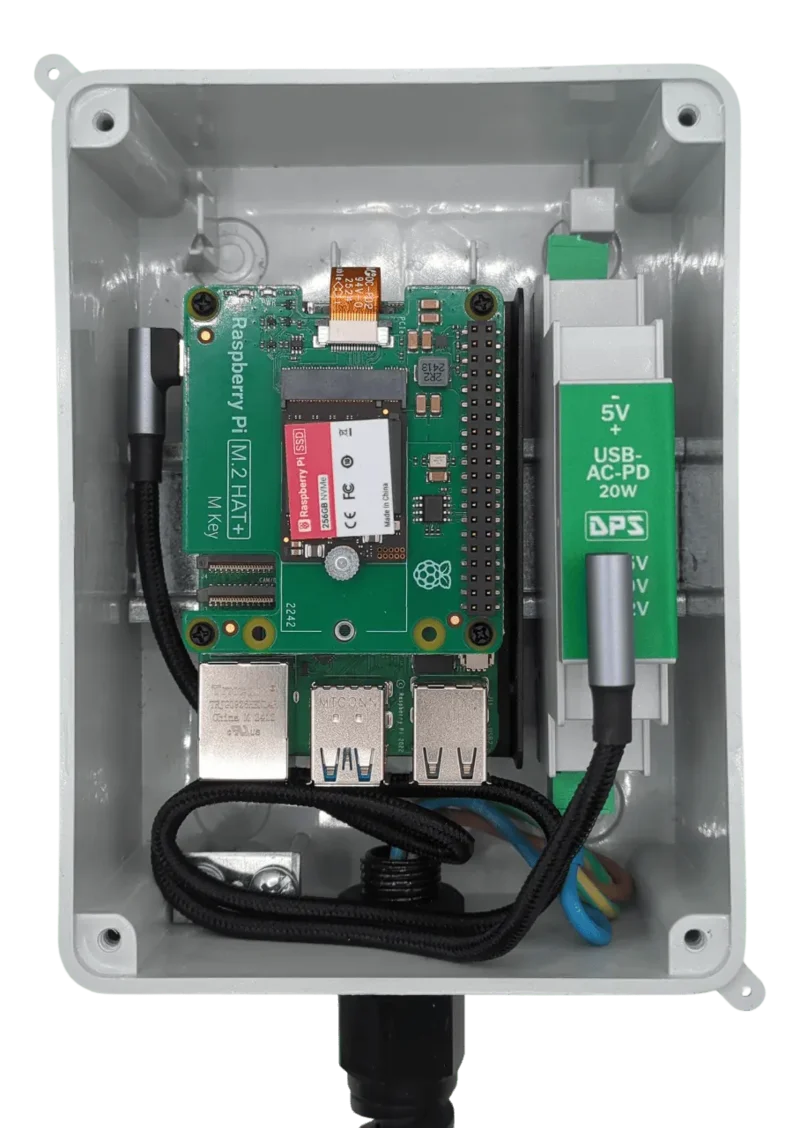
- Mount the Raspberry Pi using DIN rail mounts (3D-printed or professional).
- Use a USB-C cable to connect the power supply to the Raspberry Pi.
- Close the cabinet lid.
💡 Power supply capability: The USB-AC-PD power supply provides 5 V at 3 A. The Raspberry Pi 5 may display a power warning when the maximum USB load is limited - in a control cabinet environment, this warning can be safely ignored.