

Dr. Michael Heidinger
CEO, Digital Power Systems
CEO, Digital Power Systems
Introduction
This tutorial provides a step-by-step guide for establishing a Modbus connection between the DCP48M DC/DC converter and a Windows PC using a USB-to-RS485 adapter.
Required Material
- DCP48M DC/DC converter
- Windows PC
- USB-to-RS485 adapter (recommended: Waveshare FTDI USB-to-RS485). A programming kit is also available directly from DPS.
Hardware Wiring
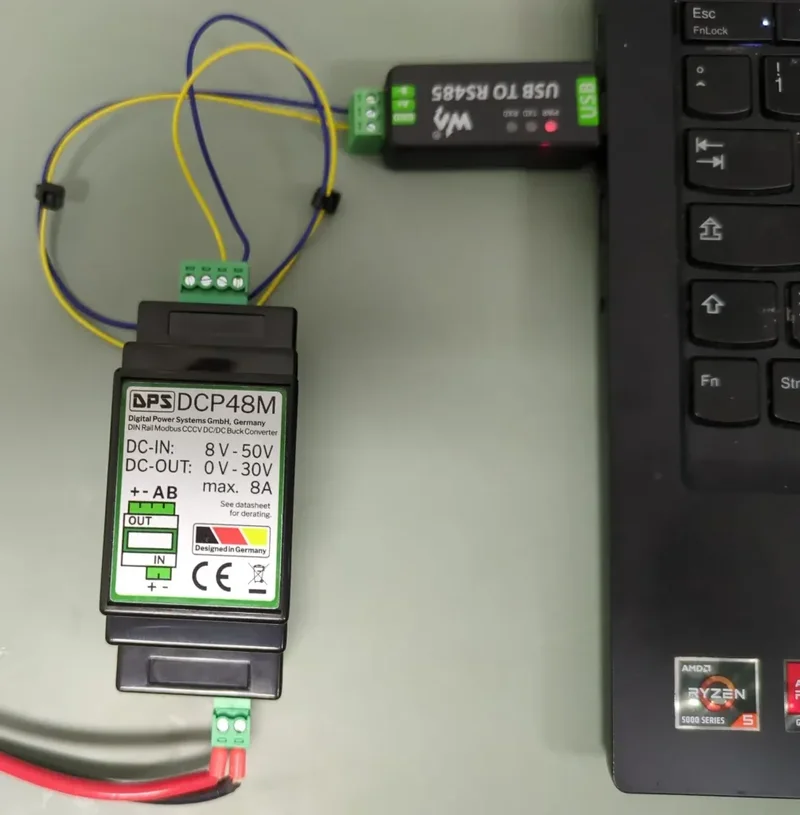
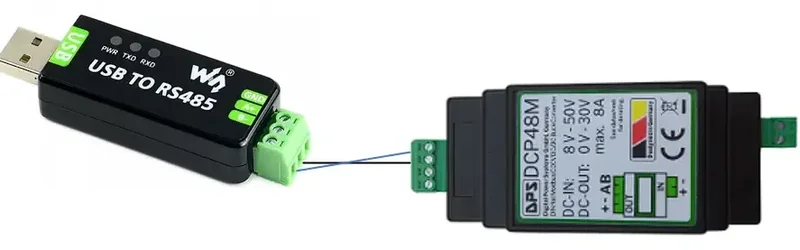
Establishing the Modbus Connection
We use the Radizio! Modbus Master Simulator (RMMS) software for this tutorial.
Step 0: Ensure Power and Connection
Make sure the DCP48M is powered on and the USB-to-RS485 adapter is connected to both the PC and the DCP48M.
Step 1: Open RMMS
Launch the RMMS.exe application.
Step 2: Load Configuration
Go to File → Open configuration file and load the DCP48M configuration file.
Step 3: Connection Settings
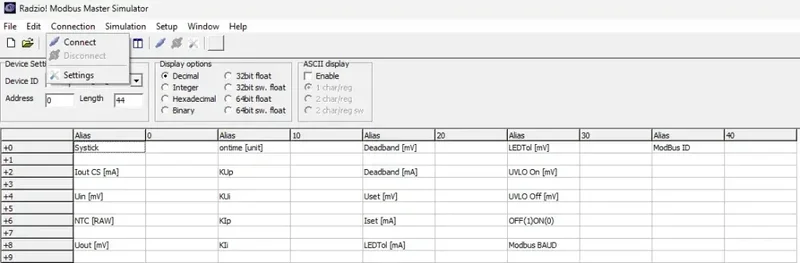
Go to Connection → Settings.
Step 4: Configure COM Port
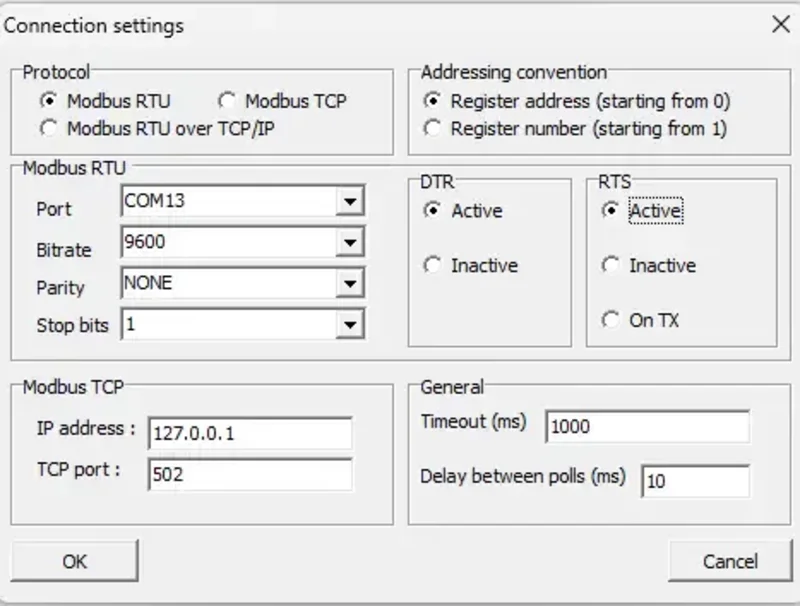
Match the recommended connection values. Find your COM port number via Windows Device Manager → Ports (COM & LPT).
Step 5: Connect
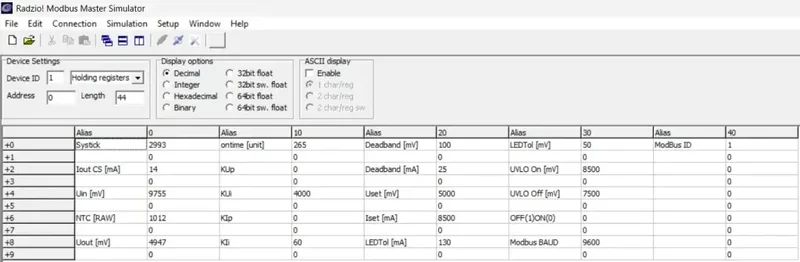
Go to Connection → Connect. If the connection is successful, the Systick counter should increment by approximately 10 per second.
Frequently Asked Questions
- How do I check if the DCP48M is powered? The RGB LED on the board should be illuminated.
- How do I verify the connection? The Systick counter in RMMS should be counting up.
- How do I save parameter changes? After modifying parameters, trigger a save command via the Modbus registers.
- How do I perform a factory reset? Consult the DCP48M datasheet for the factory reset procedure via Modbus.
Modifying Control Parameters
⚠ Warning: Modifying control parameters may void the warranty. Proceed with caution.
Basic Parameters
- Output Voltage (Uset): Value in mV
- Output Current (Iset): Value in mA
- On/Off: 1 = On, 0 = Off
Modbus Parameters
- Modbus ID: Device address on the bus
- Baud Rate: Communication speed (changing this saves all parameters)
Control Loop Parameters
- Voltage Control: KUp (proportional), KUi (integral), Deadband
- Current Control: KIp (proportional), KIi (integral), Deadband